
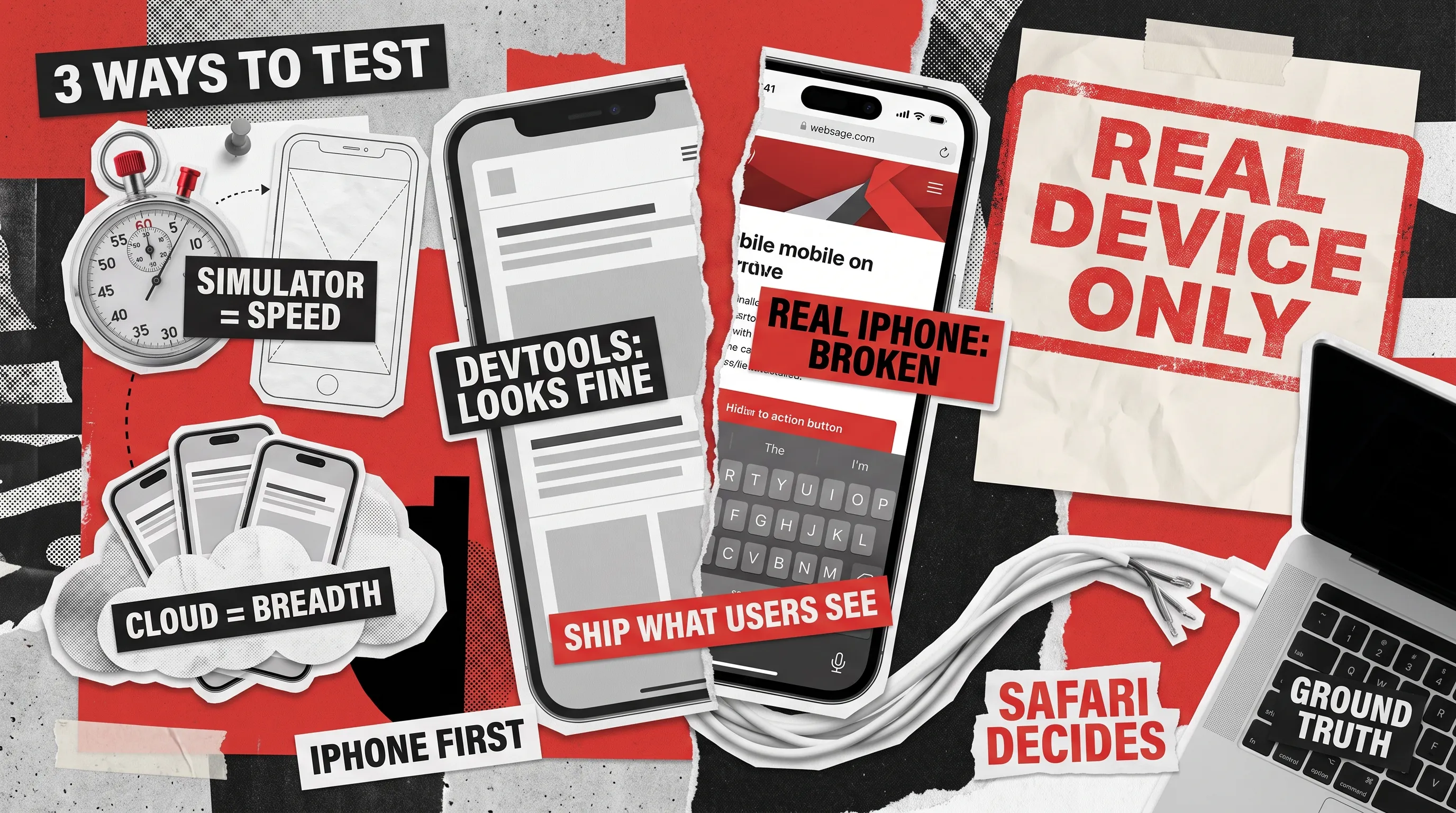
Most teams reach for the “iPhone” toggle in Chrome DevTools first, and that toggle is the fastest way to ship a bug your iPhone visitors find before you do. Anyone asking how to test website on iPhone has three reliable options: a real iPhone connected to Safari Web Inspector, the iOS Simulator in Xcode, or a cloud service that streams real iPhones to your browser. Each one catches a different class of bug at a different cost.
The stakes are highest in the US, where Safari handles 52.84% of all mobile browsing, according to StatCounter’s August 2026 data. When our QA engineers tested a redesigned corporate website across Safari on iOS and six other browsers, slightly less than half of the UI bugs we logged occurred on mobile devices. This guide compares the three paths on setup, cost, and blind spots, and ends with a bug-class scorecard you can use to pick the right one.
The Chrome DevTools "iPhone Mode" Trap
Chrome DevTools device mode resizes the viewport, sets a device pixel ratio, swaps the user-agent string, and turns mouse clicks into touch events. Everything else still runs on Blink, Chrome’s desktop engine, on your laptop’s CPU. Google’s own documentation calls device mode “a first-order approximation” and recommends running the page on a real mobile device for the full picture.
The gap matters because iPhone bugs live in WebKit and iOS behavior that device mode never loads. These are the misses we see most often when a site was signed off in device mode alone:
- Layouts sized with
100vhget clipped under Safari’s collapsing address bar, while device mode shows a clean, full-height screen. - Content slides under the Dynamic Island and the home indicator when
env(safe-area-inset-*)padding is missing, and device mode draws no notch to reveal it. - Form fields with a font size under 16px make iOS Safari zoom in on focus, which breaks fixed headers and bottom bars.
- Native controls such as
input type="date"open iOS wheel pickers with their own sizing and focus behavior. - Safari’s storage rules, including blocked third-party cookies and capped script-written storage, can log users out or break embedded checkouts.
- Add to Home Screen and web push work through iOS-specific flows that a desktop browser has no way to reproduce.
Device mode still earns its place for a first responsive pass on breakpoints and content reflow. Treat anything it approves as a layout sketch that still needs an iPhone to sign off.

The same logic covers Chrome and Firefox on iPhone. Apple’s App Review Guidelines require apps that browse the web to use WebKit, with an alternative-engine entitlement limited to the EU and Japan, so for most of your audience every iPhone browser renders your page with the same engine as Safari. A thorough Safari pass therefore covers the vast majority of iPhone traffic, whichever browser icon your visitors tap.
Path 1: Real iPhone + Safari Web Inspector
This path wins when you have a Mac and an iPhone and need ground truth on a specific bug. Safari Web Inspector attaches to the exact Safari build your customer runs, with the same Elements, Console, Network, Sources, Storage, and Timelines tabs you know from the desktop. Recent releases keep widening the toolset: Safari 26.4 added Largest Contentful Paint entries to Timelines, and the Safari 27 beta notes on the WebKit blog list inline color-contrast checks and full redirect chains in the Network tab.
The only cost is hardware you probably already own, so the cheapest way to test website on iPhone with full accuracy is usually sitting on your desk. If you are shipping a native app rather than a website, a dedicated mobile app testing checklist covers the install, permission, and store-review side that Web Inspector never touches.
Setup in 90 Seconds
- On the iPhone, open Settings, go to Apps, then Safari, then Advanced, and switch on Web Inspector.
- On the Mac, open Safari, go to Settings, then Advanced, and check “Show features for web developers.”
- Connect the iPhone with a cable and tap Trust on the phone when prompted.
- Open the page on the iPhone, then pick it from Safari’s Develop menu on the Mac under your device name.
- Optional: after the first cable pairing, enable Connect via Network in the Develop menu to inspect over Wi-Fi.
A connected device also unlocks controls that ordinary Safari hides. Apple’s documentation notes that on a connected device or simulator you can override the user agent, disable cross-origin restrictions, and switch off site-specific quirks, which is often the quickest way to learn whether a bug comes from your code or from a workaround Safari applies to your domain.
What Only a Real iPhone Catches
A real device shows how the page responds to a finger. Momentum scrolling, overscroll bounce, pinch-zoom, and the edge swipe that triggers browser back all feel different under a thumb than under a trackpad, and scroll-linked animations that look smooth on a Mac often stutter on a mid-range phone. Autofill is another blind spot everywhere else: iCloud Keychain passwords and one-time codes pulled from Messages only fill in on hardware tied to a real Apple Account.
The phone also brings its own constraints. Cellular latency, a weak signal in a train carriage, and memory pressure that makes Safari silently reload a background tab all belong to real hardware, and they are behind many “we can’t reproduce it” tickets. Windows users without a Mac can skip to Path 3, or use Inspect, a desktop app that brings Web Inspector style debugging for iOS Safari to Windows and Linux.
Path 2: iOS Simulator via Xcode
The Simulator wins when you have a Mac and are iterating on CSS or component states faster than plugging in a phone allows. It ships with Xcode, which is free and currently a 3.1 GB App Store download that requires a Mac with Apple silicon. Pick a device, boot it, open Safari inside the simulated iPhone, and attach Web Inspector from the Develop menu exactly as in Path 1, since Apple keeps Web Inspector always enabled for simulators.
For teams that need to test website on iOS versions they no longer own, the Simulator lets you download older runtimes, switch languages and regions in seconds, and rotate between portrait and landscape with a keystroke. Xcode 27 adds Device Hub as a single place to manage simulators and connected phones, and the WebKit team notes that Safari’s Develop menu now launches Device Hub instead of Simulator when it is available. Layout work across small and large screens is where this path saves the most hours, because each device size is one click away.
Two defaults trip up almost every first session. The Simulator routes your Mac keyboard into text fields and hides the on-screen keyboard, so press Command+K to bring it back before testing any form, or keyboard overlap bugs stay hidden. Network speed comes from your Mac as well, and Apple’s Network Link Conditioner, part of the Additional Tools for Xcode package, can throttle it to a 3G or high-latency profile when you need a rough preview of slow-connection behavior.
The Simulator's Blind Spots
The Simulator runs Safari’s real WebKit engine on your Mac’s hardware, so anything tied to the phone’s body stays out of reach. Its limits follow a pattern: rendering is accurate, while touch, sensors, and resources are borrowed from the Mac. Performance numbers reflect a desktop-class chip, network traffic rides your office connection, and there is no camera to test a document upload or a QR scan. Face ID can be toggled from a menu to fake a match, which confirms your UI responds to success or failure but says nothing about the real authentication prompt.
Autofill and some Home Screen web app flows only partly work, because they depend on accounts and system services the Simulator only imitates. Treat the Simulator as a fast rendering bench, then confirm touch, network, and memory behavior on hardware before release.
Path 3: Cloud Real Devices
Cloud devices win when you need iPhone models or iOS versions you do not own, when your team works on Windows, or when regression runs need several devices in parallel. You get a real iPhone in a data center, streamed to your browser, with remote Web Inspector access, screen recording, and a tunnel for reaching staging servers behind your firewall. Before paying for a plan, compare what different cross-browser testing tools already cover, since some teams only need occasional access to one or two devices.
Version breadth is the main reason to pay. Apple released iOS 27 on September 14, 2026, per Apple Newsroom, and the iPhone 18 Pro line arrived the same month, which means your audience now spans at least two major Safari versions and a new set of screen sizes. iPhone browser testing across that spread is where a device cloud earns its fee, because no team keeps every model in a drawer. The trade-offs are stream latency that dulls gesture testing, shared devices that are wiped between sessions, and data center Wi-Fi standing in for real cellular conditions.
The Bug-Class Scorecard
Each row below is a bug class we see on real projects, rated for how reliably each path surfaces it. Use it to pick a path by the bug you are chasing and skip the question of which tool is “best.”
Responsive layout and breakpoints
Partial
Catches
Catches
Catches
Safe-area insets (Dynamic Island, home indicator)
Misses
Catches
Catches
Catches
100vh under the collapsing address bar
Misses
Catches
Catches
Catches
Momentum scroll and overscroll bounce
Misses
Partial
Catches
Partial
position: sticky inside scroll containers
Partial
Catches
Catches
Catches
Touch gestures (pinch, swipe back, long press)
Partial
Partial
Catches
Partial
iOS keyboard and focus zoom
Misses
Catches
Catches
Catches
Password and one-time-code autofill
Misses
Partial
Catches
Partial
Native pickers (date, select)
Misses
Catches
Catches
Catches
Third-party cookies and storage limits
Misses
Catches
Catches
Catches
Home Screen web app and web push
Misses
Partial
Catches
Partial
Real cellular network conditions
Partial
Partial
Catches
Partial
Memory pressure and tab reloads
Misses
Misses
Catches
Partial
Face ID and Apple Pay
Misses
Partial
Catches
Partial
Coverage across iOS versions and models
Misses
Partial
Partial
Catches
Read the table by column and a clear pattern appears. The real device wins on correctness, the Simulator wins on iteration speed, and the cloud wins on breadth.
In practice, we turn the scorecard into a release gate. Rows rated Partial or Misses for your current setup become the manual checks for every release that touches forms, navigation, checkout, or login, and each of those checks runs on the path that catches it. A team that only owns a Simulator, for example, adds a short real-device pass for gestures, autofill, and memory before shipping a new checkout flow.
How to Test Website on iPhone: The Right Path for Your Team
Budget and team setup narrow the choice faster than any feature list. Each profile below maps to the combination we would set up on day one:
- A solo developer on a Mac shipping a marketing site needs Path 1 for sign-off and Path 2 for fast iteration, with no cloud subscription at all.
- A front-end team working on Windows uses Path 3 as the daily driver, plus one shared team iPhone with Inspect for weekly ground-truth checks.
- An agency or in-house team supporting several iOS versions runs Path 3 for breadth inside a documented cross-browser testing process, and keeps Path 1 for bugs that only reproduce on cellular.
- A QA team owning regression uses Path 3 for parallel runs and Path 2 for smoke tests on a Mac CI runner.
Some teams have the devices and still lack the hours to run the matrix before every release. That is where an outside compatibility testing team fits: QAwerk plugs into a project at whatever stage it is in, ramps up fast, and reports bugs with the device, iOS version, and steps your developers need to fix them on the first try.
Ground Truth Over Vendor Rankings
The best iPhone test is the one that catches the bug you are about to ship. That choice depends on the bug class first and the budget second, and a vendor’s search ranking belongs nowhere in the decision. Chrome device mode gives you a quick layout check, the Simulator gives you speed, a real iPhone gives you the truth, and the cloud gives you reach across models and versions.
Most teams end up with two of the three paths and a clear rule for when to use each. If you want your site checked on real iPhones across current iOS versions before your next release, contact us and we will scope it with you.
FAQ
How do I test my website on iPhone?
Use one of three paths. Connect a real iPhone to Safari Web Inspector on a Mac for the most accurate results, use the iOS Simulator in Xcode for fast layout iteration, or rent real iPhones from a cloud device service when you need models or iOS versions you do not own.
How do I open developer tools on iPhone?
Open Settings on the iPhone, go to Apps, then Safari, then Advanced, and turn on Web Inspector. On your Mac, enable “Show features for web developers” in Safari’s Advanced settings, connect the phone with a cable, and select the open page from the Develop menu.
Does Chrome DevTools iPhone mode actually simulate iOS Safari?
No. It changes the screen size, pixel ratio, and user-agent string while the page still renders in Chrome’s Blink engine. Safari-specific behavior such as the collapsing address bar, safe-area insets, focus zoom, native pickers, and storage rules stays invisible until you check on WebKit.
Can I test iPhone Safari from Windows?
Not natively, since the iOS Simulator only runs on macOS. Windows users can rent real iPhones through a cloud device service, or connect their own iPhone to a Windows PC and debug Safari with the Inspect app.
See how QAwerk tested a redesigned corporate website on Safari for iOS and six more browsers, helping Elsewhen launch on time and cut its mobile bounce rate by 20%