Google blocked 1.75 million policy-violating apps from reaching Google Play in 2025 and banned over 80,000 developer accounts, according to TechCrunch. Every submission now goes through more than 10,000 safety checks before it reaches a human reviewer. The bar keeps rising. The margin for error keeps shrinking.
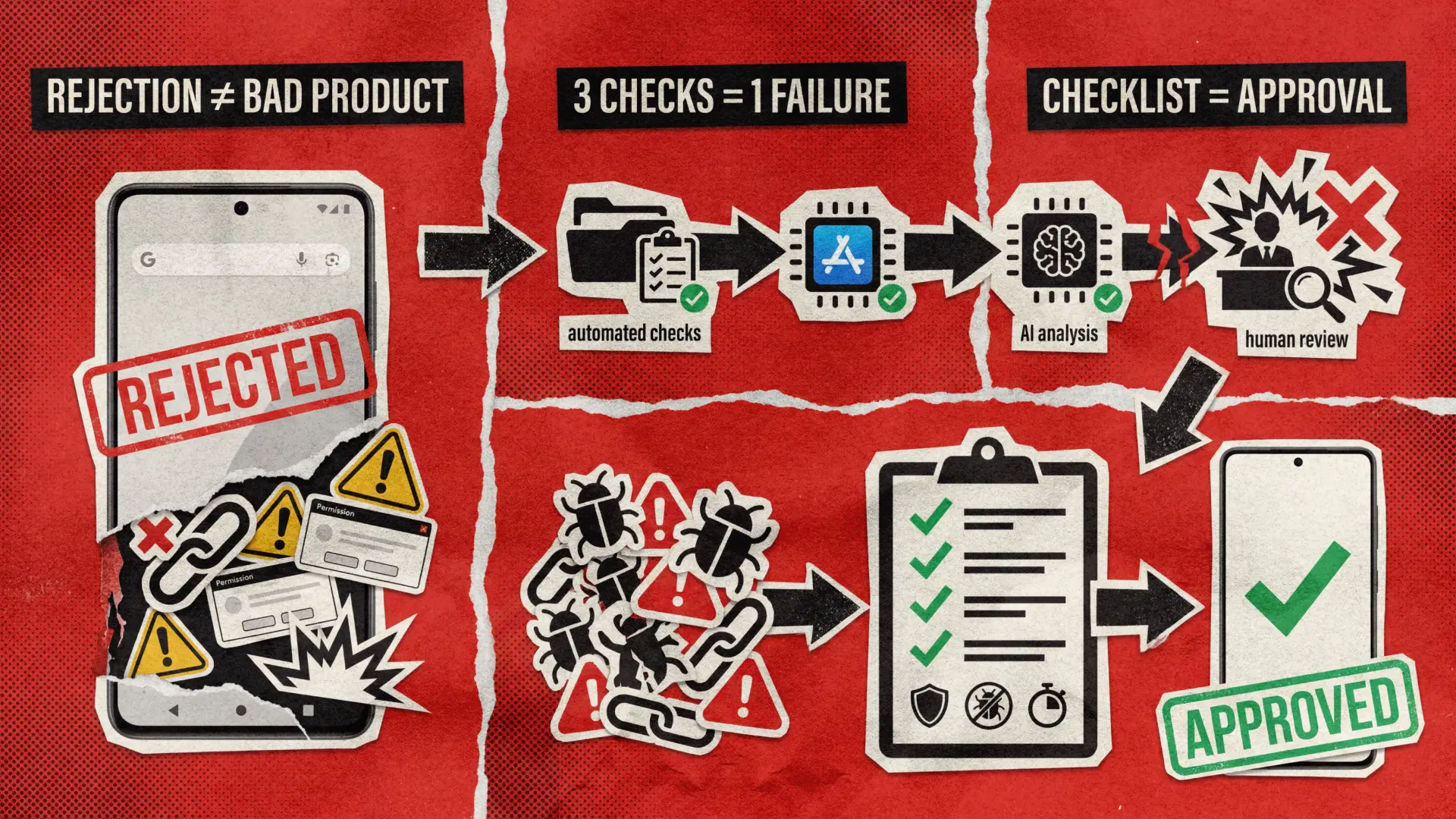
Most rejections stem from preventable mistakes. A broken privacy policy link. An unnecessary permission. A crash on first launch. Not a flawed product — just skipped steps.
This guide covers how to upload app to Google Play, what the review actually evaluates, and the QA compliance checklist we use at QAwerk to get apps approved on the first try. Whether you’re launching a new product or migrating an existing iOS app to Android, this is the framework that separates a smooth approval from weeks of back-and-forth with Google.
How to Publish Your App on Google Play: The Core Steps
If you’ve shipped an iOS app before, the Google Play review process will feel familiar in structure but different in details. Here are the steps that actually impact whether your app gets approved.
Start with your Google Play Console account. You need a verified developer account. As of 2024, new personal accounts require identity verification and must complete a 12-tester closed testing phase before gaining production access. Organization accounts have a different verification flow, but both require accurate business information to avoid delays.
Prepare your build. Google only accepts Android App Bundle (AAB) format. Your app must be signed through Play App Signing. Starting August 31, 2025, all new submissions and updates must target API level 35 (Android 15), per Google’s target API level requirements.
Complete your Play Console declarations. This is where most rejections originate. You’ll fill out the data safety form, content rating questionnaire, target audience declaration, and privacy policy URL. If your app requires login, provide clear access instructions for reviewers. If it uses sensitive permissions (SMS, call log, background location), submit a permissions declaration form.
Prepare your store listing. Title (30 characters max), short description (80 characters), long description (4,000 characters), at least two screenshots, and a feature graphic at 1024×500 px. Everything must accurately represent what the app does. Misleading descriptions or screenshots that don’t match the actual UI will get you rejected.
Run through testing tracks. Google expects you to use internal testing, then closed testing (minimum 12 opted-in testers for 14 consecutive days on new personal accounts), then open testing, then production. Skipping closed testing blocks production access entirely.
Once everything is ready, you submit the app to Google Play through the Play Console. Your app enters a review pipeline that combines automated checks, AI analysis, and human evaluation.
What Google Play Review Actually Checks
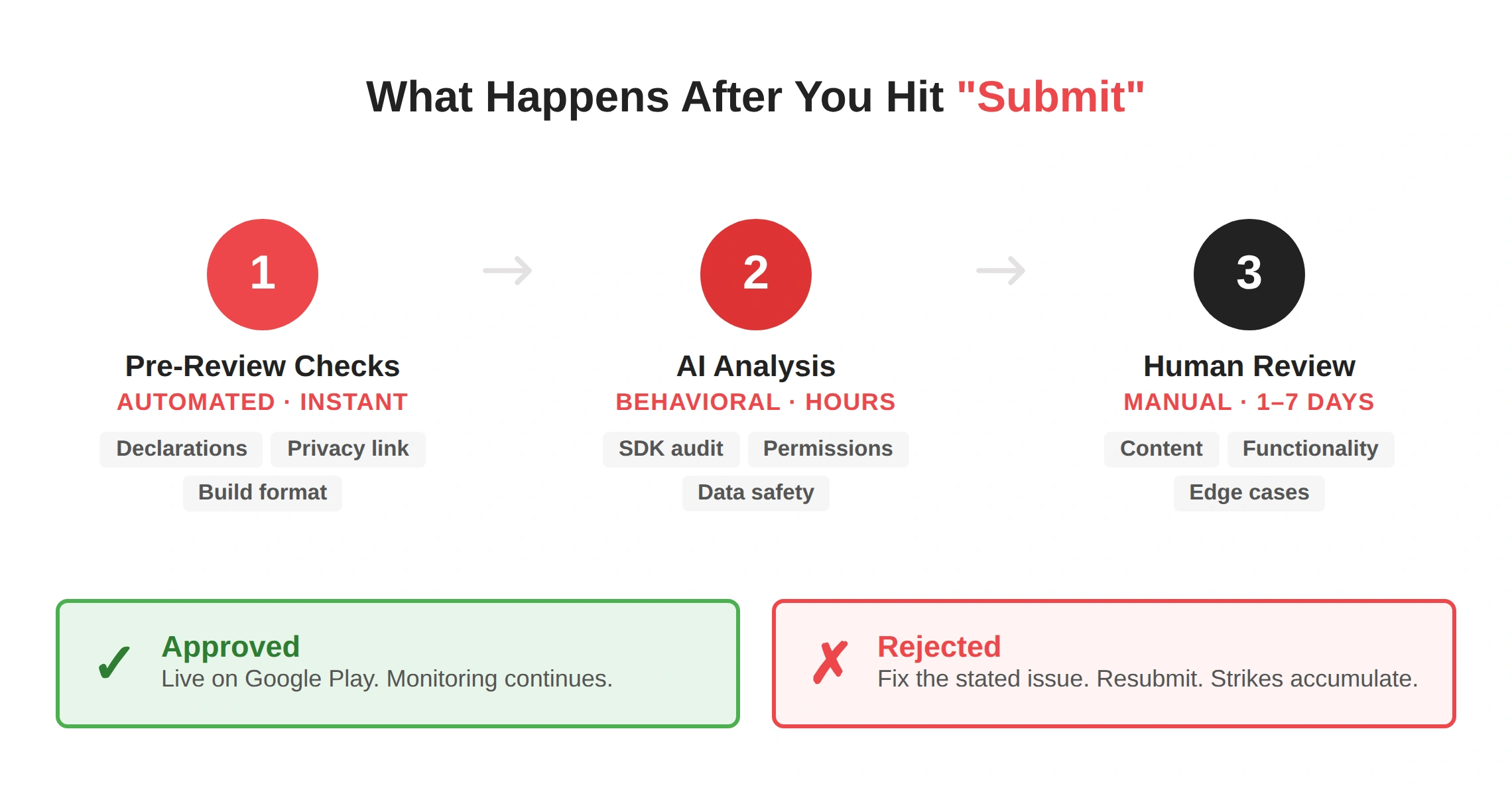
The Google Play review isn’t one step. It’s three layers running in parallel, and understanding each one helps you prepare for all of them.
The first layer is automated. Pre-review checks scan your submission for missing declarations, broken privacy policy links, file format issues, and basic policy violations. These run instantly and flag problems before a human ever looks at your app. Google’s own pre-review checks documentation explains which issues get surfaced at this stage.
The second layer is AI-driven. As TechRadar reported, Google integrated generative AI models into its review pipeline in 2025. These models analyze behavioral patterns, permission usage, and SDK activity. They compare declared data collection with actual app behavior. The gap between what you say your app does and what it actually does is precisely where rejections happen.
The third layer is human. Reviewers evaluate content compliance, test functionality against your store listing claims, and verify edge cases that automation misses. If your app requires login, they’ll use the test credentials you provided. If you forgot to provide them, expect a rejection.
Certain categories trigger deeper scrutiny: financial apps, health products, apps targeting children, and anything involving AI-generated content. The Google Play developer policy introduced mandatory developer verification, US state-level age verification laws (Texas, Utah, Louisiana), and disclosure rules for AI-generated content. Google’s Checks compliance tool can catch some policy issues early, but it covers only a subset and won’t replace a proper QA pass.
The Google Play Compliance Checklist
This is the Google Play compliance checklist our QA team runs before every submission. It maps directly to what Google’s review evaluates, grouped by the five areas where rejections happen most. If you’re looking for a broader QA framework beyond store-specific requirements, our mobile app testing checklist covers the full picture.
Declarations & Policy
- Privacy policy URL is live, accessible, and accurately describes what the app collects.
- Data safety form is complete — declared data matches actual SDK behavior.
- Content rating questionnaire is filled out accurately.
- Target audience is declared, with Families policy compliance if the app includes children.
- Permissions declaration form is submitted for sensitive permissions (SMS, call log, background location).
- Ad disclosure is accurate, including ad SDK behavior.
- App access instructions are provided for any gated or login-required content.
Technical Compliance
- App targets API level 35 or higher.
- Build is in AAB format, signed with Play App Signing.
- No crashes on first launch across 5+ device configurations.
- No ANRs (Application Not Responding) on core user flows.
- All links, buttons, and navigation paths are functional.
- Login and authentication flows work with provided test credentials.
Functional QA
- Core features work exactly as described in the store listing.
- No placeholder content, debug menus, or leftover test data.
- App offers meaningful functionality beyond static content (Minimum Functionality policy).
- In-app purchases use Google Play Billing where required.
- Account deletion option is available and functional.
Security & Privacy
- No unnecessary dangerous permissions requested.
- All third-party SDKs audited for undeclared data collection.
- No data transmitted without user consent.
- Encryption declarations accurate if applicable.
Store Listing
- Screenshots and feature graphic reflect the current app UI.
- Title and description contain no misleading claims.
- No copyrighted or trademarked material used without authorization.
- Contact email is valid, active, and monitored.
This isn’t a theoretical framework. When PIXO, a Seoul-based app developer, came to QAwerk for help launching Logo Maker Shop on Google Play, the app had already been successful on iOS. But Android was a different story. Our Android app testing team ran functional, compatibility, and UI testing across multiple device configurations, wrote all test documentation from the ground up, and caught critical bugs in the subscription and logo export flows before they reached production. In about two months, PIXO was ready for a smooth Google Play launch.
The checklist above follows that same logic — it’s the structured mobile app testing process that catches the issues Google’s review is specifically designed to flag. If you want it adapted to your specific app, our Google Play compliance testing service is built for exactly that.
How Long Does Google Play Review Take?
Google Play review time depends on the type of submission. New apps from new developer accounts typically take 3 to 7 business days. Updates to existing apps usually clear within 24 to 48 hours, though major feature changes or new SDK integrations can extend that to 2–3 business days.
What slows things down: holiday submission surges, missing declarations, flagged sensitive permissions, and incomplete app access instructions. What speeds things up: a clean pre-review check with zero warnings, accurate declarations, a stable build with no crashes, and a proper QA pass before you hit submit.
New personal accounts face additional friction because of the closed testing requirement. If your testers aren’t actively engaging with the app for 14 consecutive days, Google may reset the timer and reject your production access request. Understanding these challenges upfront saves you weeks of wasted time.
Rejected? Here’s What to Do
A Google Play app review rejection isn’t a dead end. It’s a signal that something specific needs fixing, and Google tells you exactly what.
Read the rejection email carefully. Google identifies the exact policy your app violated. Don’t guess at the problem or make broad changes. Fix the stated issue, update the build or declaration, and resubmit through Play Console. You don’t need to contact support first.
If you disagree with the decision, reply directly to the rejection notification email with factual evidence and a reference to the specific policy. Keep it concise. Well-documented appeals have a roughly 40% success rate when human reviewers reassess the case.
What you want to avoid is a pattern of repeated rejections. Accumulated strikes can lead to permanent developer account termination. If you’re stuck in a loop, the most efficient move is bringing in a dedicated QA team to audit your app against the full policy set. A fresh set of eyes with mobile application testing expertise catches what you’ve been looking past — from overlooked security gaps to data safety mismatches that triggered the rejection in the first place.
Ship With Confidence
How to publish an app on Google Play without losing weeks to preventable rejections comes down to preparation. Google’s review process is the quality filter, and apps that clear it properly perform better, retain more users, and build trust from day one.
The checklist above gives you the exact framework to pass that filter on the first try. If you’re preparing to launch and want to make sure nothing slips through, QAwerk has been helping teams ship Android apps since 2015. We know this Google Play review checklist because we run it every time. Contact us and let’s get your app approved.
FAQ
How do I know which permissions Google will flag?
Google maintains a list of sensitive permissions that require additional declarations, including SMS, call log, and background location access. Use Play Policy Insights in Android Studio and the Permissions Declaration Form in Play Console to verify your app before submitting. If a permission isn’t essential to your core functionality, remove it.
Can I skip closed testing and go straight to production?
Not if you have a new personal developer account created after November 2023. Google requires at least 12 opted-in testers for 14 consecutive days of closed testing before you can apply for production access. Organization accounts have a separate verification process.
What’s the most common reason for Google Play rejection?
Incomplete or inaccurate data safety declarations account for a significant share of rejections. Other frequent triggers include app crashes on first launch, broken privacy policy links, and apps that lack meaningful functionality beyond static content.
See how a design app caught critical bugs in subscriptions and logo exports before launching on Google Play.